
Get to know the AIRI loci interface
Getting startedReview draft
On this page
Use home to start tasks and return to projects. Inside a project, the conversation is for requests, progress and discussion; the canvas is for viewing, selecting, editing and organizing content. Both work with the same project.
Where content belongs
| Term | Meaning | Typical contents |
|---|---|---|
| workspace | A work area managing projects and members | Your own or a team's projects |
| project | Organizes Pages, files and memory for one body of work | A design project |
| Page | An infinite creative canvas | A design round, stage or topic |
| frame | An area grouping assets | Generated results, alternatives or a presentation board |
| asset | An uploaded, generated or added item | Files, images, video, audio, HTML and other content |
For example, “Cultural Center” is a project with “Concept discussion” and “Presentation preparation” Pages. Frames group alternatives; each rendering is an asset. Here, “canvas” means the creative area within a Page. Creating a project and creating a Page operate at different levels; use a frame for a board.
Skills, References and Examples
| Library | Single item | Helps answer |
|---|---|---|
| Skills | Skill | How to do the work |
| References | Reference | What to draw on |
| Examples | Example | What the result could look like |
Explore an Example, choose a Skill for the goal and use References to show what to draw on. A reference file does not execute a workflow by itself. See Skills, References and Examples.
Frequently used areas
Start in the home input or open recent work. Check the active conversation before sending. AIRI loci Agent handles tasks through one entry point; keep default models and parameters unless needed. Select assets to reference them in a conversation. Available editing tools depend on the selected asset type.
For ongoing project context, open Project settings / Reference files or Project memory. These differ from temporary message attachments.
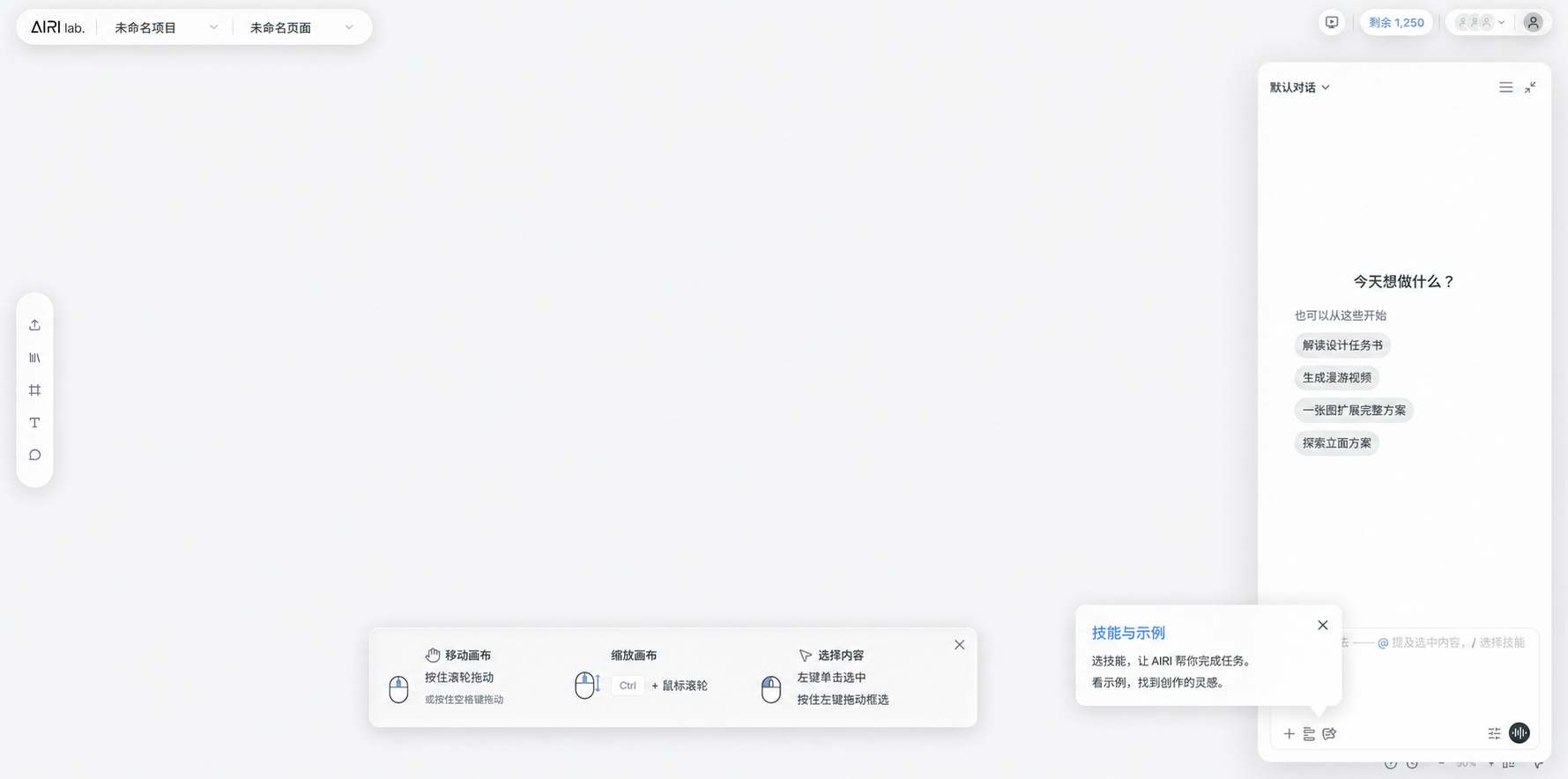 Chinese interface illustration: the main project areas, shown during onboarding. Open the image for full size.
Three different actions
A new conversation starts a separate discussion, not a new project. A new Page organizes canvas content without clearing project background. Removing a message attachment changes that task's inputs without deleting the original asset.
If content is missing, check the workspace, project, Page and conversation in that order. Click a frame title to operate on the whole frame; select an image inside to edit just that image.
Pan, zoom and select · Upload and reference · Project context and memory · Documentation