
Export frames and presentations
Sharing and collaborationReview draft
On this page
Decide whether you need assets, a whole board or a content-paginated presentation. Frame layout determines options and PDF pagination.
Export auto layout
Select the frame title, check contents and reading order, drag items to reorder if needed, then choose Export auto layout as PDF or PPT. Open the file to verify pages and layout.
PDF paginates articles/text by content; images and slides each occupy one page. PPT makes one slide per item, shrinking even long articles onto one slide. PDF suits long reading material; PPT supports further presentation editing.
Auto layout does not flatten side-by-side canvas assets into a single board. Use free layout for that.
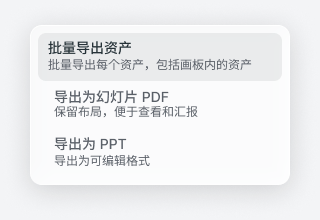 Chinese menu illustration: assets, PDF and PPT export. Wording may vary by version.
Export free layout
Finish the composition, check size and bounds, select the frame and choose Export design board as PDF. Each free-layout frame produces one page preserving the whole arrangement.
Text and images are not delivered as separate editable objects. Return to the original frame in AIRI loci to revise and export again.
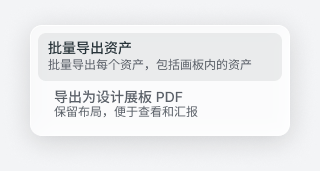 Chinese menu illustration: separate assets or a PDF preserving the board's composition.
Mixed content
Auto-layout document export supports eligible articles, text, images, video and slides. Video appears as a static image in PDF. Deliver audio separately rather than relying on PDF/PPT. Put supported content in a separate frame if necessary.
When selecting several frames, distinguish Batch export assets from preserving frame layouts. For an explicit page count and scope, export and inspect frames individually.