
Use image editing tools
Canvas and PagesReview draft
On this page
Select an image to reveal its toolbar. Crop changes framing; Extend generates content beyond the image; Upscale increases output clarity. Availability depends on image state and permissions.
Crop
- Select Crop.
- Drag crop handles or choose a ratio and orientation.
- Check subjects, text and edges in the preview.
- Apply crop, Cancel crop or Reset to choose again.
Cropping does not create new content. To keep a subject while filling extra space beside it, use Extend.
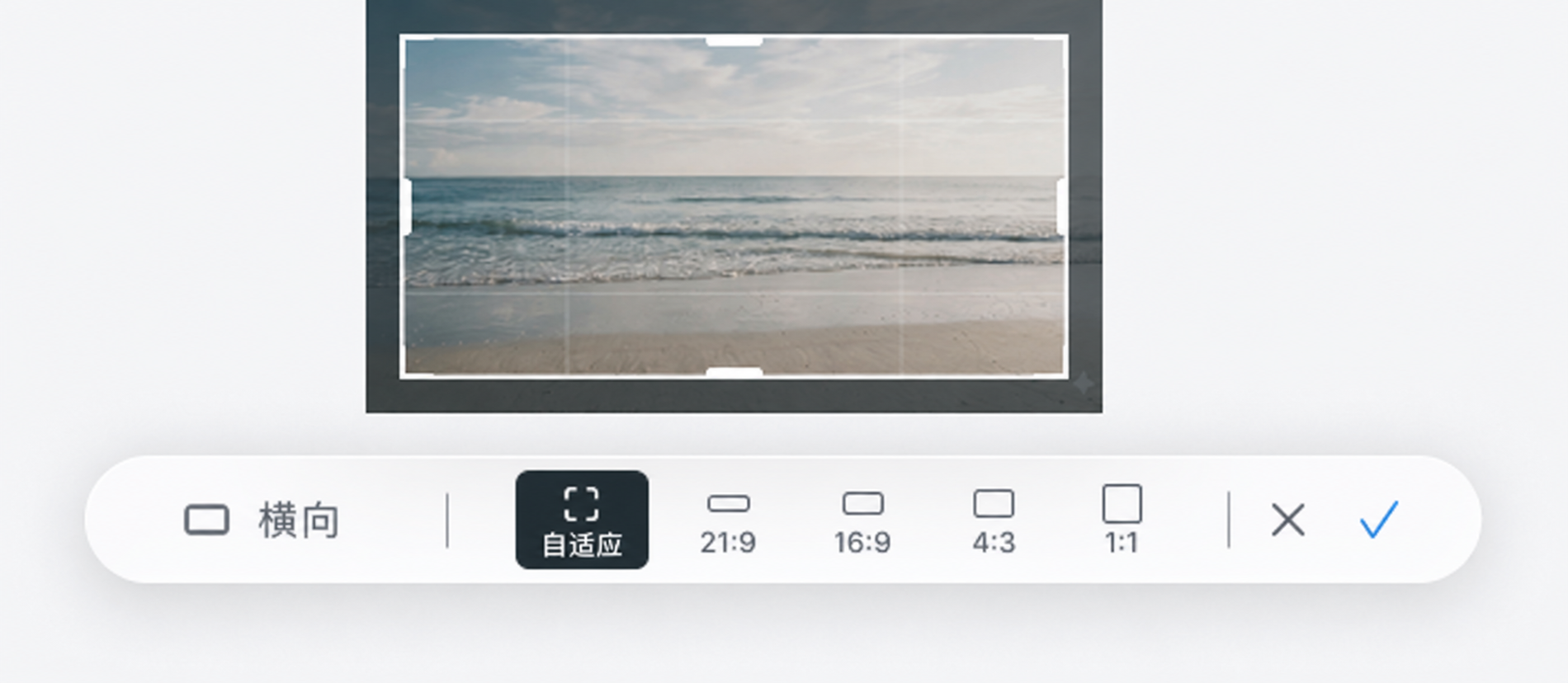 Chinese interface illustration: only the selected crop area is retained. Check subjects and edges before applying.
Extend
- Select Extend.
- Adjust the target bounds or ratio and check the original image's position.
- Choose Generate extension and wait.
- Compare with the original, especially building edges, openings, roads and planting connections.
The new region is generated and needs review. Use Crop simply to remove edges. Reference the image in a conversation for specific design requirements in the added area.
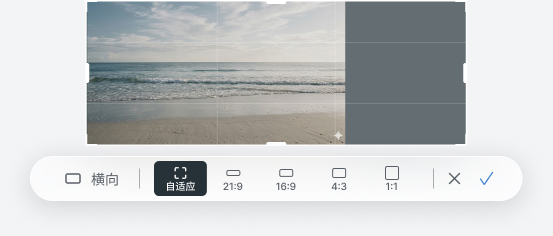 Chinese interface illustration: bounds selection for generated extension, not a completed result.
Upscale
Choose Upscale and Fast, Standard or Extreme. Fast prioritizes speed; Standard balances speed and quality; Extreme supports larger enlargement, with scope explained in the interface. Inspect details after generation before adopting it.
Upscaling is not redesign. Correct faulty windows, materials or text before improving clarity. Credits and individual allowance also affect generation availability.
Eraser availability
If Eraser is gray or marked Coming soon, it cannot start an edit. Instead, reference the image to Agent, describe the local change and inspect the result.
Generate and edit images · Generation details · Download results