
Use project files and project memory
Working with AgentReview draft
On this page
Project settings / Reference files holds reusable files. Project memory holds confirmed context, requirements and constraints for later conversations.
| Content | Location | Example |
|---|---|---|
| Temporary task inputs | Message attachments | Two images to compare now |
| Frequently consulted files | Project settings / Reference files | Brief, existing conditions, client confirmations |
| Confirmed facts and decisions | Project settings / Project memory | Retention conditions, selected direction, budget constraints |
Find project settings
Open the project menu at the top and choose Project settings to find Project memory and Reference files. Verify the project name first.
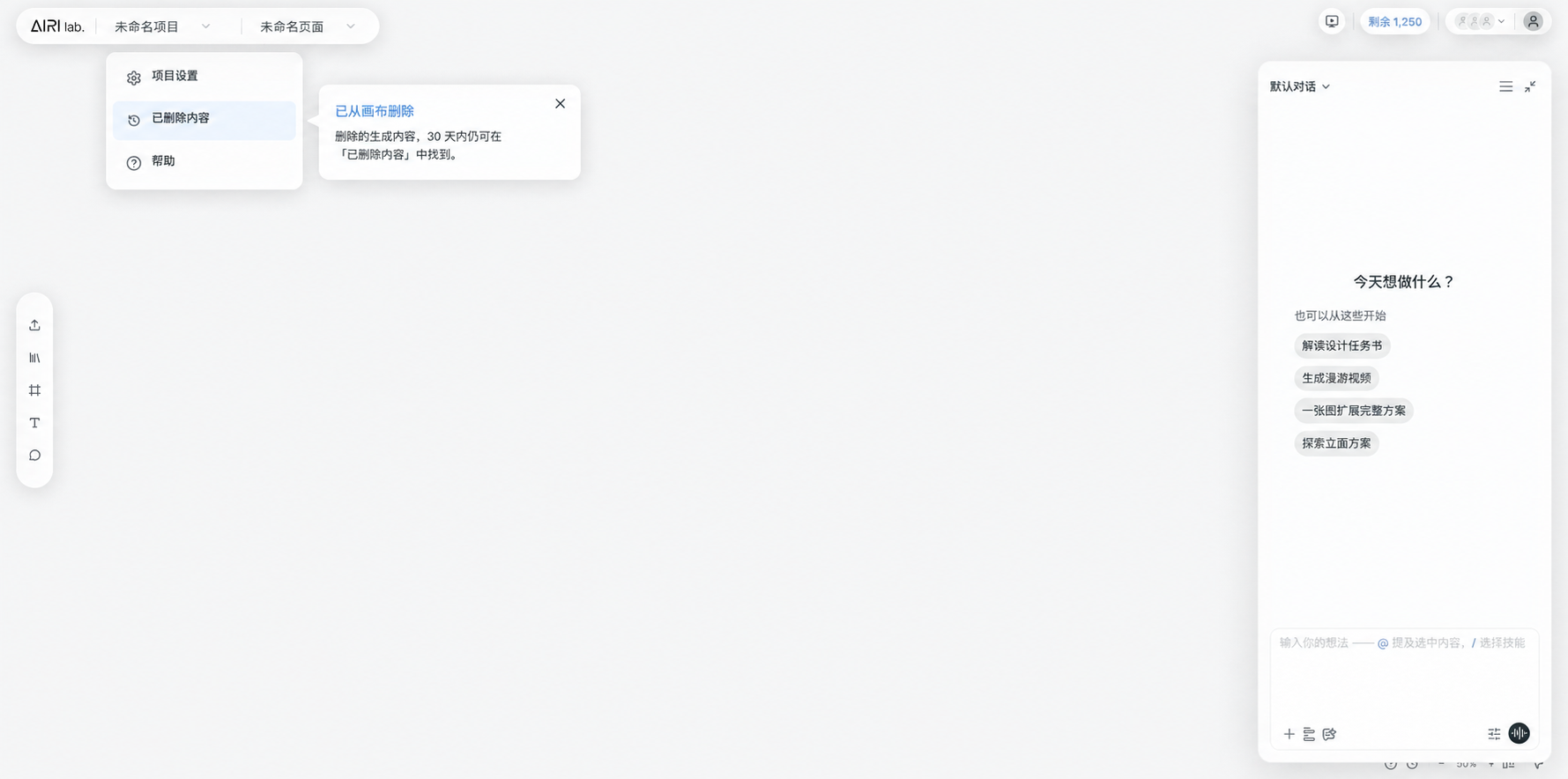 Chinese interface illustration: project settings and project trash are in the project menu.
Add or remove reference files
In Project settings, find Reference files on the Project memory page and choose Add files. You can add project documents such as PDFs, DOCX files and Markdown, including briefs, client requirements and confirmed scope notes. Wait for uploading and processing to finish, then check that the files appear in the list. Add new versions and remove obsolete references when context changes.
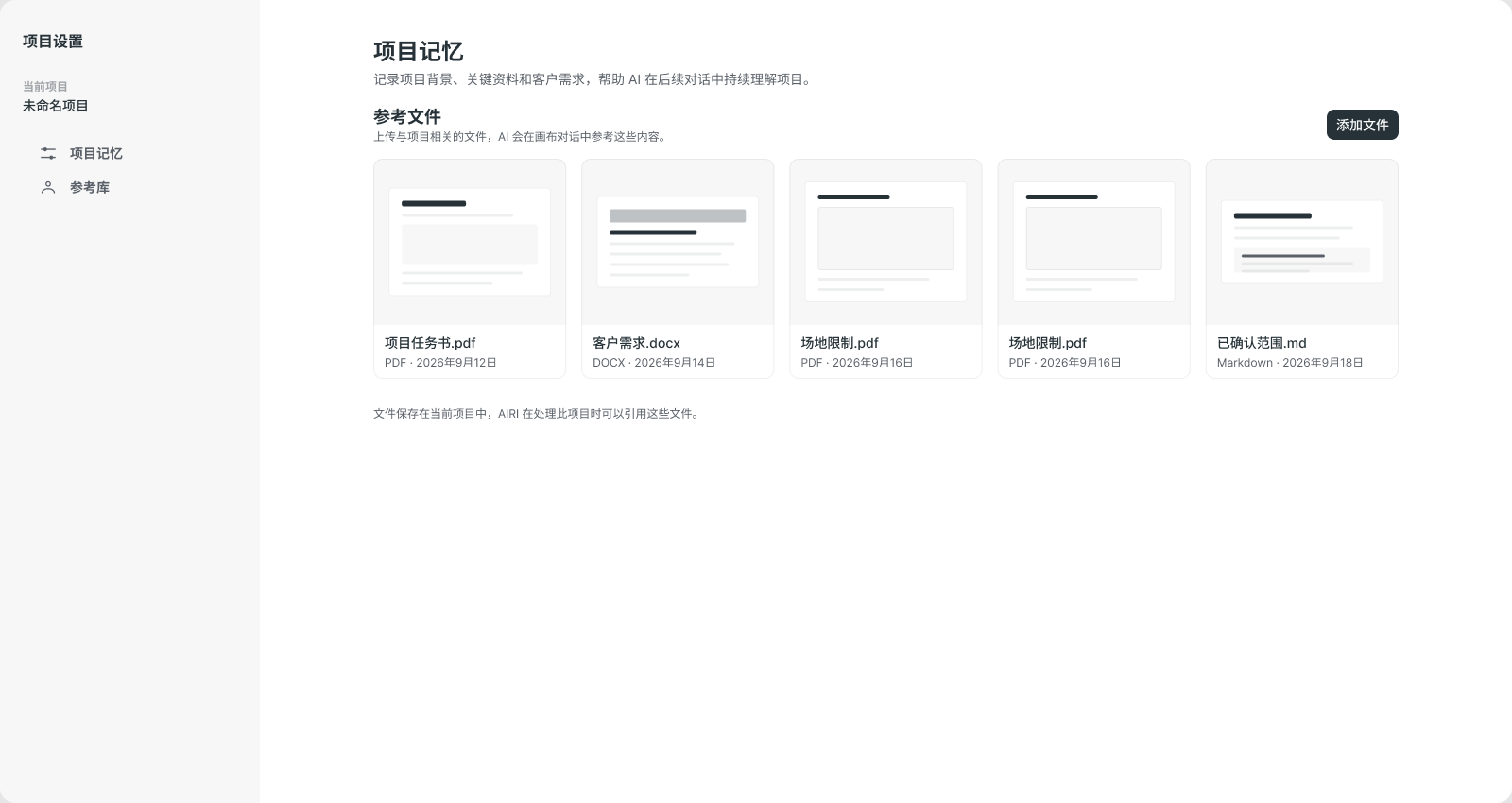 Chinese interface: reference files include a PDF brief, DOCX client requirements and Markdown scope notes. The source screenshot is unchanged; click to view the original.
Removing a reference stops using it as a project reference; it does not mean every copy of the source asset was deleted or storage released. Asset deletion and workspace usage are managed separately.
View and edit memory
Find a group in Project memory and choose Edit. Save changes or Cancel, and wait for successful saving before leaving. If newer content exists, review it before saving to avoid overwriting others' changes. Use Reload after a loading failure.
You can explicitly ask Agent to remember confirmed project conditions, then verify the record. State which old condition a new one replaces rather than appending a contradiction.
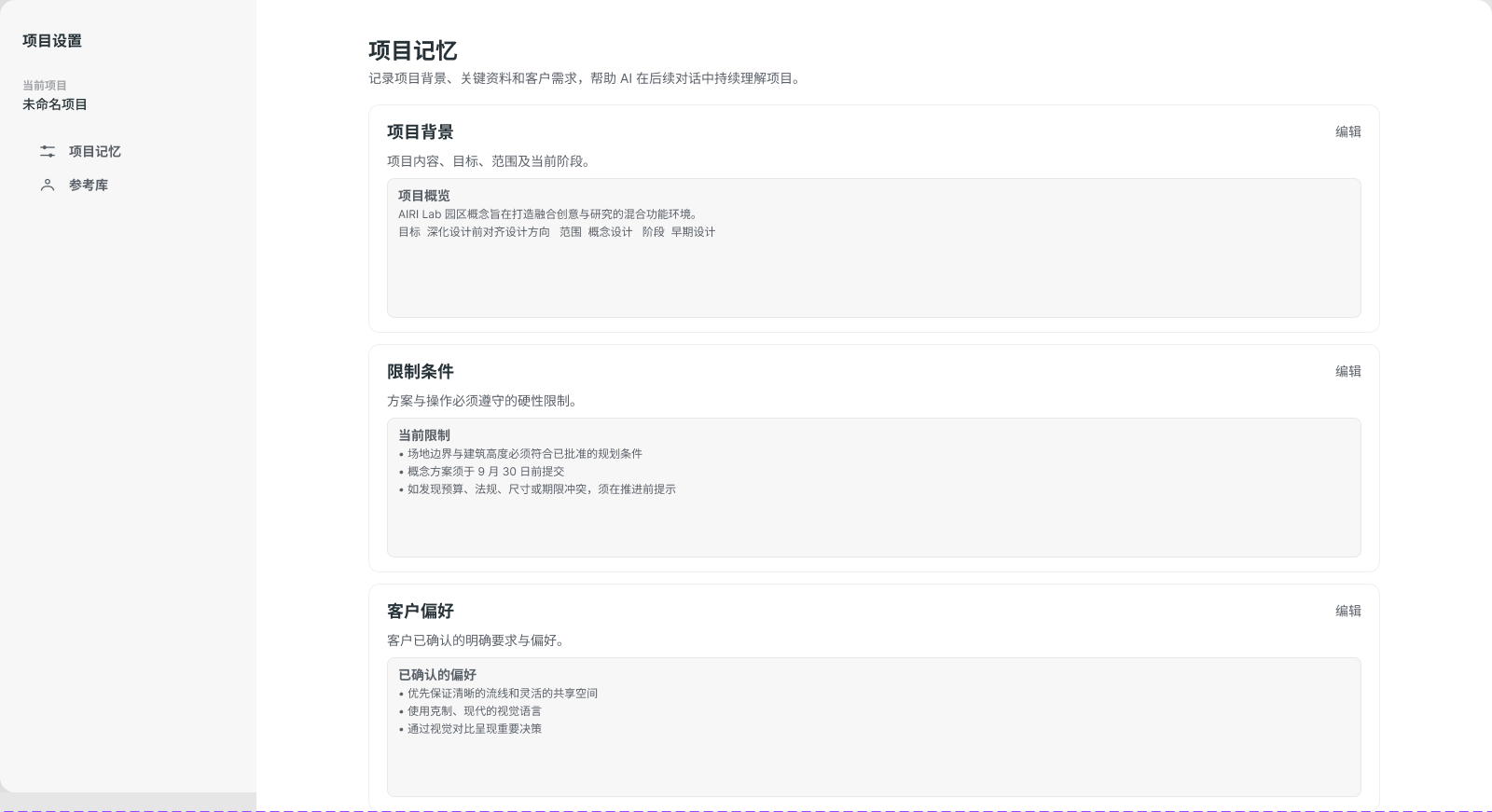 Chinese interface illustration: grouped project background, constraints and client preferences. See the instructions above for saving changes.
Work with your team
Project context is shared. Record facts the team should reuse; label provisional ideas as assumptions or pending confirmation and update them after decisions.
A readable file is not necessarily analyzed in every task. Explicitly reference the particular input needed for the current round.
Personal memory · Reference content · Storage · Documentation