
Auto layout and free layout
Canvas and PagesReview draft
On this page
Frames group images, text and other content. Auto layout organizes items by rules; free layout lets you position and size a board manually. They also produce different PDF exports.
Choose a layout
| Goal | Mode | Behavior |
|---|---|---|
| Collect results, compare designs, add content | auto layout | Items rearrange when inserted or reordered |
| Compose a complete presentation board | free layout | You control positions and sizes |
Gray regions in these illustrations represent content.
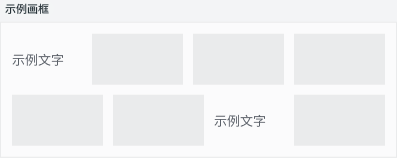 Layout illustration with Chinese labels: items follow layout rules and reflow when content is added.
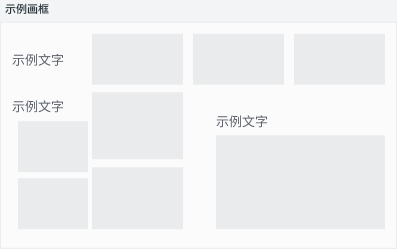 Layout illustration with Chinese labels: independently arrange the position and size of images and text.
Create or select a frame
- Choose Add frame in the left toolbar and select auto layout or free layout. Click blank canvas, drag a rectangle or enclose existing images and text.
- Move content into it. In auto layout, watch the insertion indicator; items reflow after dropping.
- Click the title above the frame for frame tools. Selecting an internal image shows image tools instead.
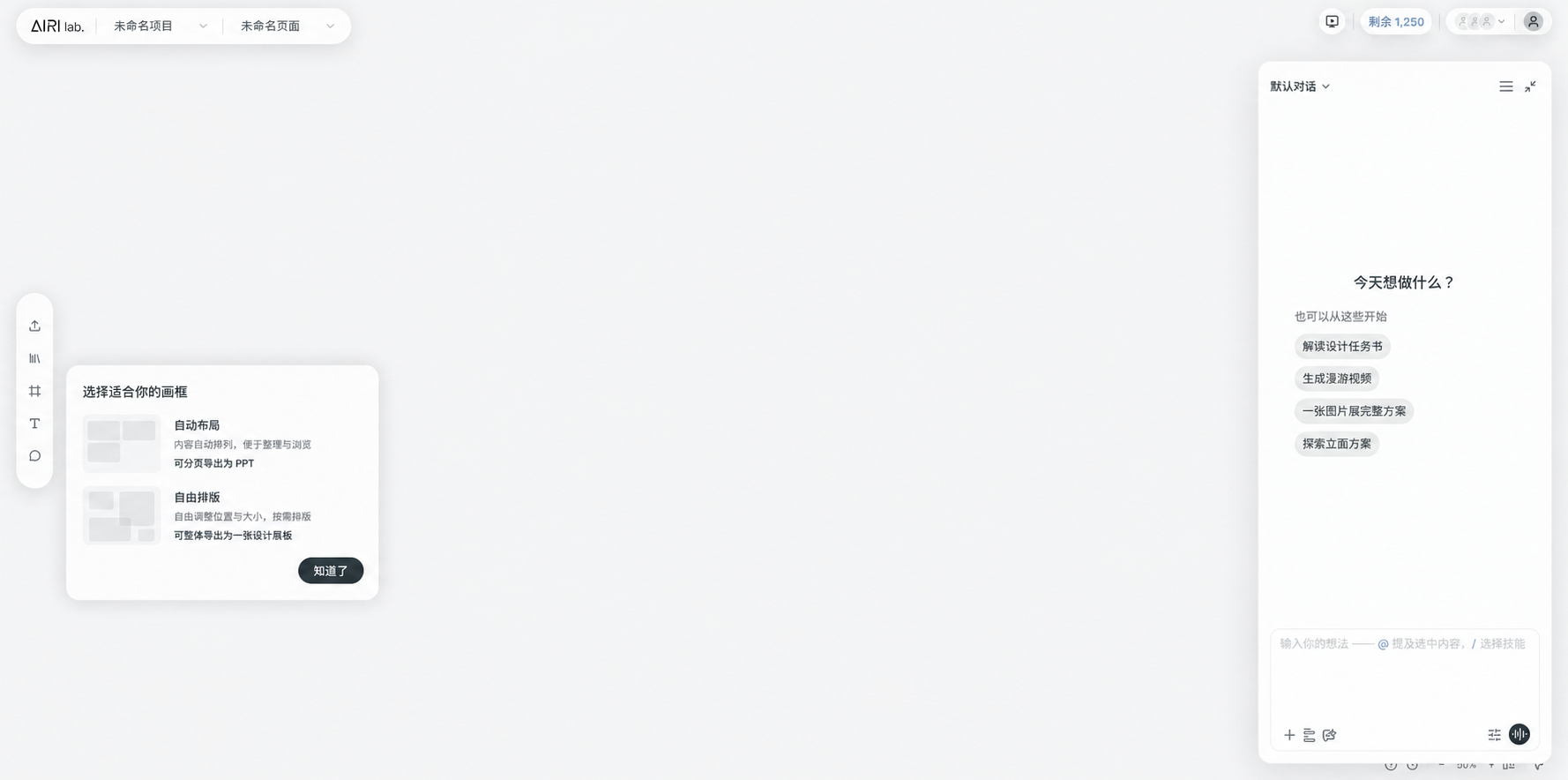 Chinese interface illustration: choose a layout for organizing results or composing a board.
Switch to free layout
Select the frame title and open the layout/size control. It may show Auto layout, Free layout, 16:9 or A3; its tooltip identifies frame layout and aspect ratio. Choose Free layout, or choose a fixed ratio/paper size to leave auto layout. Then position and resize content.
Ratios and A4–A1 paper presets are available. Choose Free layout for custom dimensions. Paper dimensions are fixed; swap width and height for orientation. After resizing, check for content outside the frame: board export uses its bounds.
Switching back
Choose Auto layout in the same control. Items rearrange, changing manual positions and gaps. Returning to free layout does not restore the old manual composition. Decide whether to preserve a completed board before switching.
Export according to your goal
Select the frame title and open Export.
| Goal | Mode | Export |
|---|---|---|
| Separate source items | Either | Batch export assets, packaged together |
| Content-paginated PDF | auto layout | Images/slides become pages; long text/articles paginate by content |
| Whole-board PDF | free layout | Export design board as PDF; one page preserves positions |
| Editable presentation | auto layout | PPT; each item becomes a slide, with editable article text/images where supported |
Shapes embedded in an image do not become independently editable. A long article shrinks onto one PPT slide, unlike paginated PDF; consider PDF for long reading material.
A free-layout board PDF preserves appearance, not separate editable text/image objects. Keep the original frame for future layout changes; batch-export assets for individual use. See export steps.
Common questions
If a PDF loses side-by-side positions, check whether it came from auto layout, which paginates content. Use free layout and board PDF to preserve composition.
If PPT is missing, select the frame rather than an internal image and check for auto layout. Free layout provides board PDF and batch asset export. Switching modes will rearrange the board.
If exported content is missing, check that it sits fully inside frame bounds, particularly after changing ratio or paper size.