
Undo, delete and recover content
Canvas and PagesReview draft
On this page
Try Undo for a recent mistake; use the appropriate trash for older deletions. Canvas assets and whole projects have different deletion and recovery entries.
Undo a recent action
Use Ctrl/Command + Z; redo with Ctrl/Command + Shift + Z or Ctrl/Command + Y. The blank-canvas context menu also shows availability.
Exit inputs, menus or other editors first. Text-editor undo affects text before canvas history. Disabled actions mean no corresponding history is available. Undo is not a universal historical restore and does not cancel submitted generation jobs.
Delete assets or frames
Select the intended bounds, then Delete/Backspace or context-menu Delete. Undo immediately if mistaken, or later use Deleted content in the project menu. To remove one image, select it rather than its whole containing frame.
Recover from trash
| Missing item | Location |
|---|---|
| Assets or Page content within a project | Project menu / Deleted content |
| Entire project | Workspace project list / Trash |
Check names, previews and deletion time, then Restore. Select multiple entries for batch actions. Return to the project or list afterward.
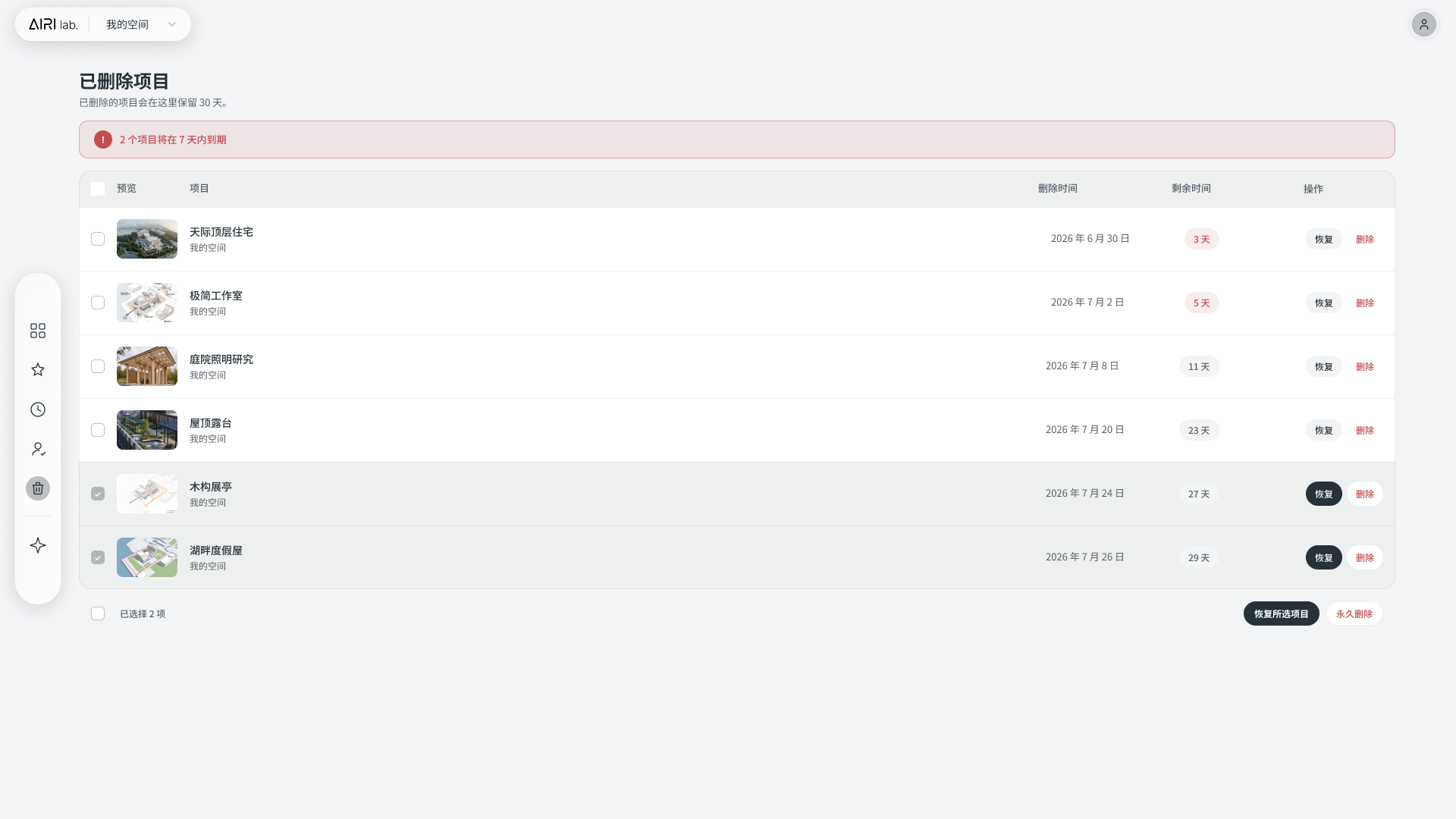 Chinese interface illustration: restores entire projects, not individual assets. Retention follows the current interface.
For assets, open the original project and its Deleted content entry.
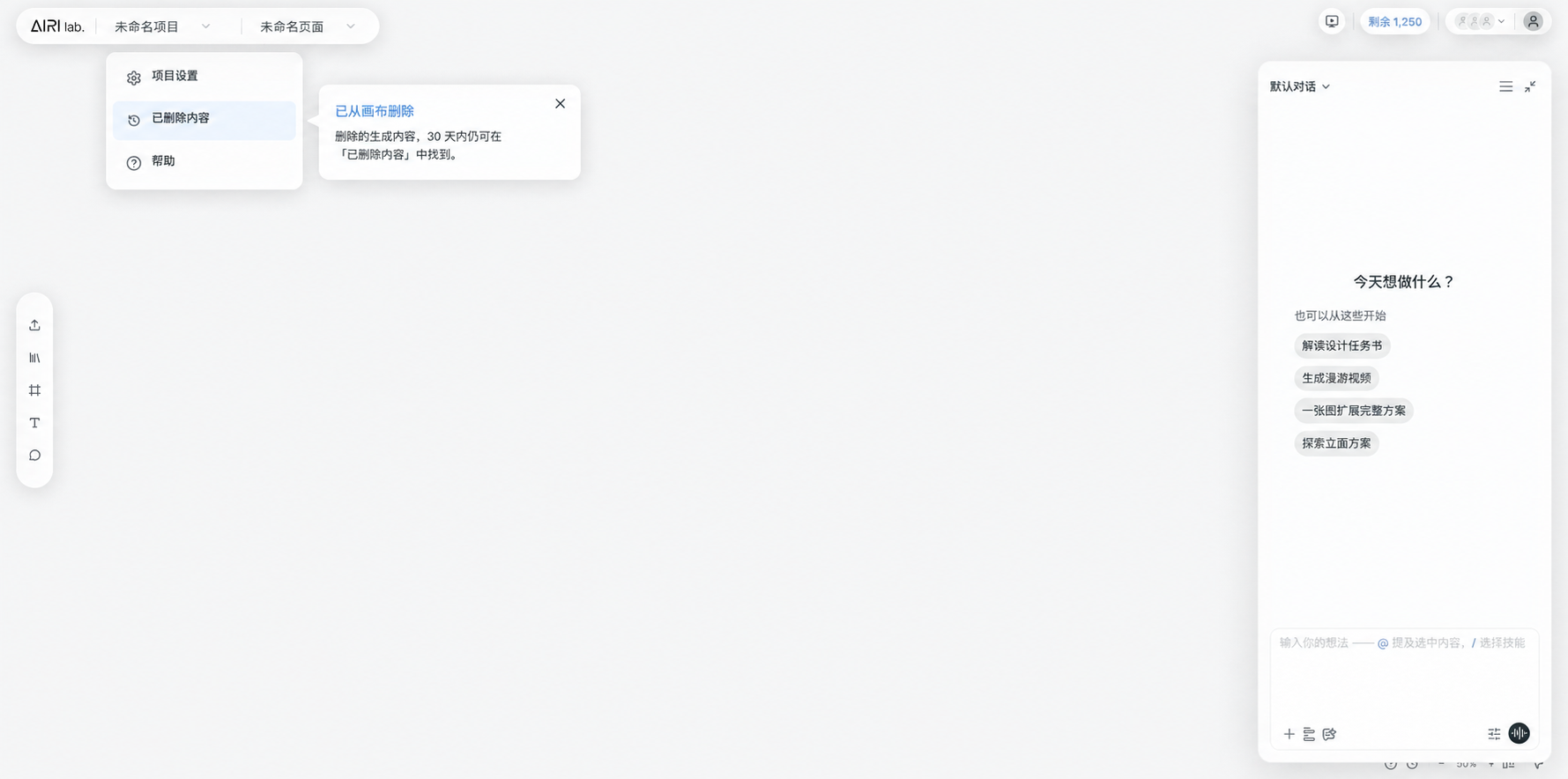 Chinese interface illustration: open the current project's asset trash from its menu.
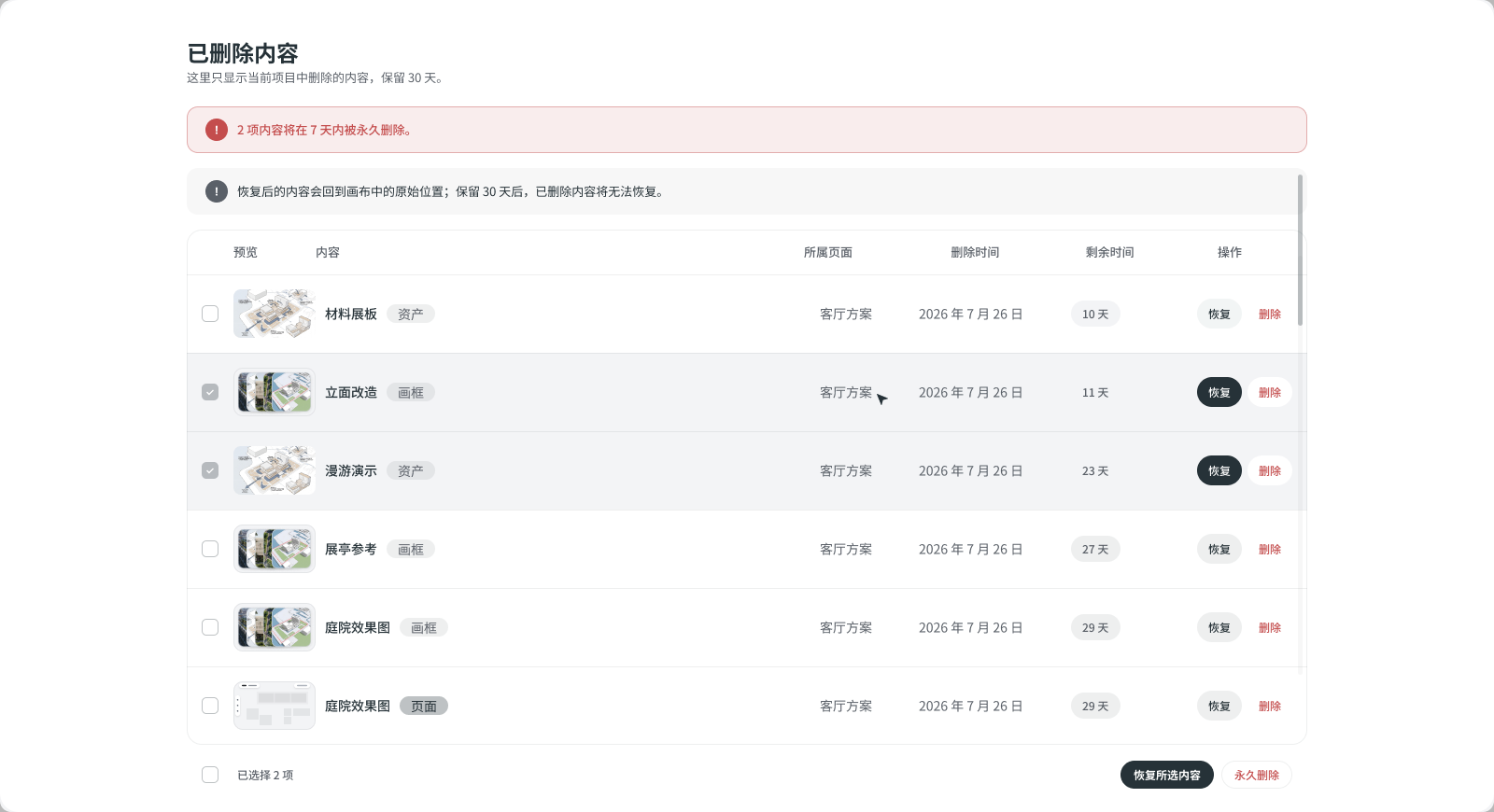 Chinese interface illustration: select items for batch recovery. Restore and permanent delete are different actions.
Restore before the displayed retention period expires. Permanent deletion removes the recovery opportunity immediately. If an item is missing, also check workspace, project and continued access.