
Pan, zoom and select content
Canvas and PagesReview draft
On this page
Panning changes the view, not object positions. Use the selection tool to move images, text or frames.
Pan the canvas
| Method | Action |
|---|---|
| Temporary pan | Hold Space and drag with the left mouse button; release to restore the tool |
| Hand tool | H, then left-drag; V returns to selection |
| Without switching tools | Middle- or right-button drag |
| Mouse wheel | Scroll to pan; Shift-scroll for horizontal pan |
| Trackpad | Two-finger pan; pinch over the canvas to zoom |
Scrolling over chats, menus or documents scrolls that content first. Move the pointer over blank canvas to navigate the whole view.
Zoom and find content
Ctrl-scroll (Command on Mac) zooms around the pointer. Use zoom controls or Ctrl/Command plus/minus to zoom around the viewport center.
- Shift + 1 fits all content.
- Shift + 2 focuses selection, or fits all when nothing is selected.
If the canvas looks empty, use Shift + 1 and zoom into the desired area.
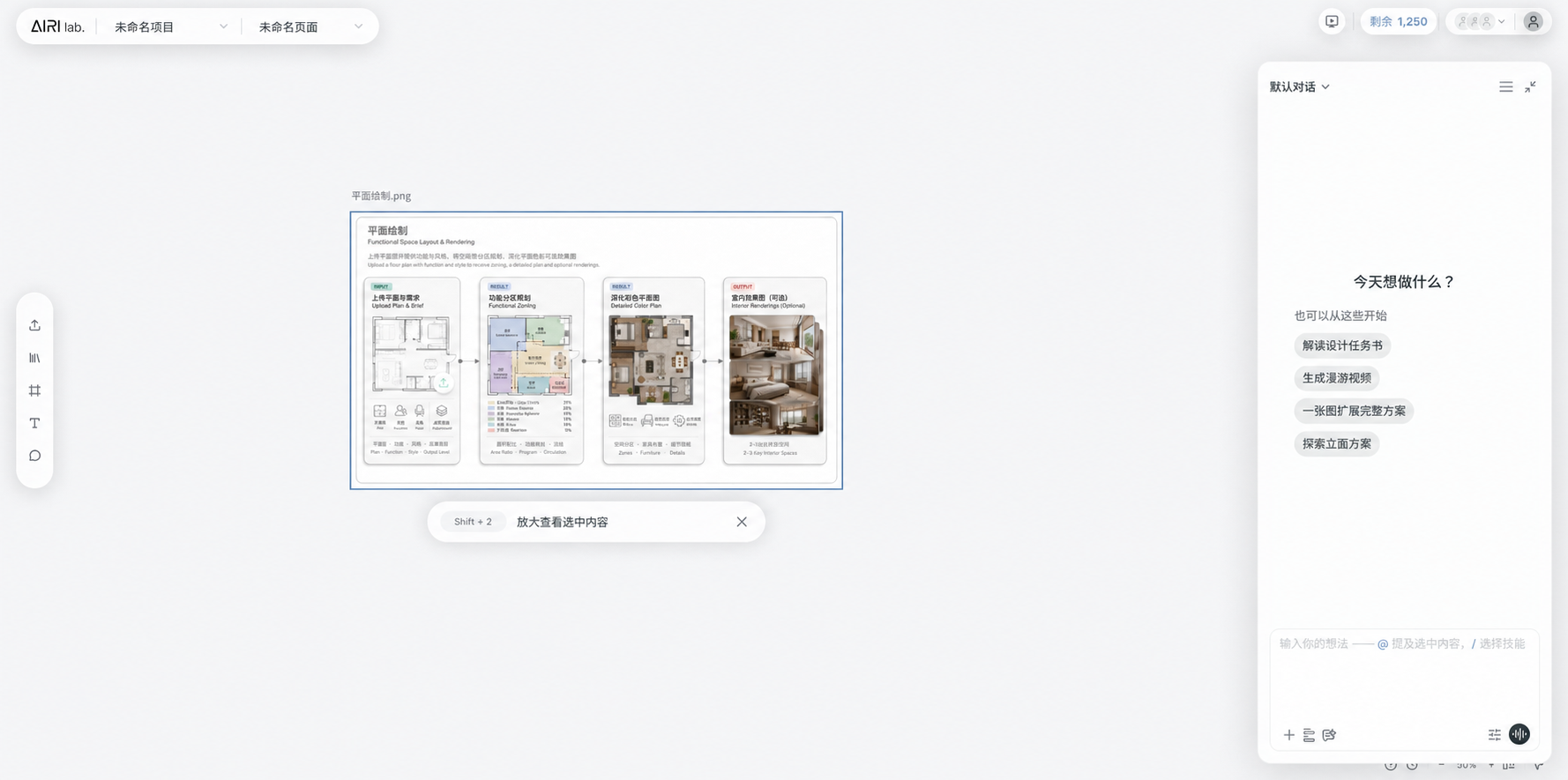 Chinese interface illustration: select content, then press Shift + 2.
Select one or several items
Click an item with the selection tool. Shift-click adds or removes it from selection. Drag from blank canvas to marquee-select: ordinary items need only intersect the rectangle, while an entire frame must be fully enclosed. Locked content is skipped.
Ctrl/Command + A selects top-level content; frames are selected as units without duplicating selection of their children. Click blank canvas to deselect.
Frames and their contents
Click a frame title to select and move the whole group. Click an internal image or text to work on it. At small zoom levels the first click may select the frame; zoom in to choose internal content.
With one item selected inside auto layout, arrow keys select adjacent content in reading order and bring it into view; they do not move it. Free canvas items can usually be nudged; see shortcuts.
When text input has focus, shortcuts act on text first. Escape exits editing or creation and then clears canvas selection. View-only access does not permit editing through dragging or shortcuts.