
Reference canvas content and attachments
Working with AgentReview draft
On this page
References identify the file, image or response you mean. An asset being on the canvas does not mean the current task is using it.
Reference canvas content
- Select the required asset or multiple assets.
- Review the preselection in the input area, then click the input to add it to the draft attachments.
- Type
@and choose an available attachment to insert its reference into the message. - Explain each role: “Use @DesignA as the basis and only the surface texture from @Material.” Check and send.
Preselection follows canvas selection. Once added to a draft, attachments must be removed in the input area. Judge the outgoing request by draft attachments and written references, not just the current canvas selection.
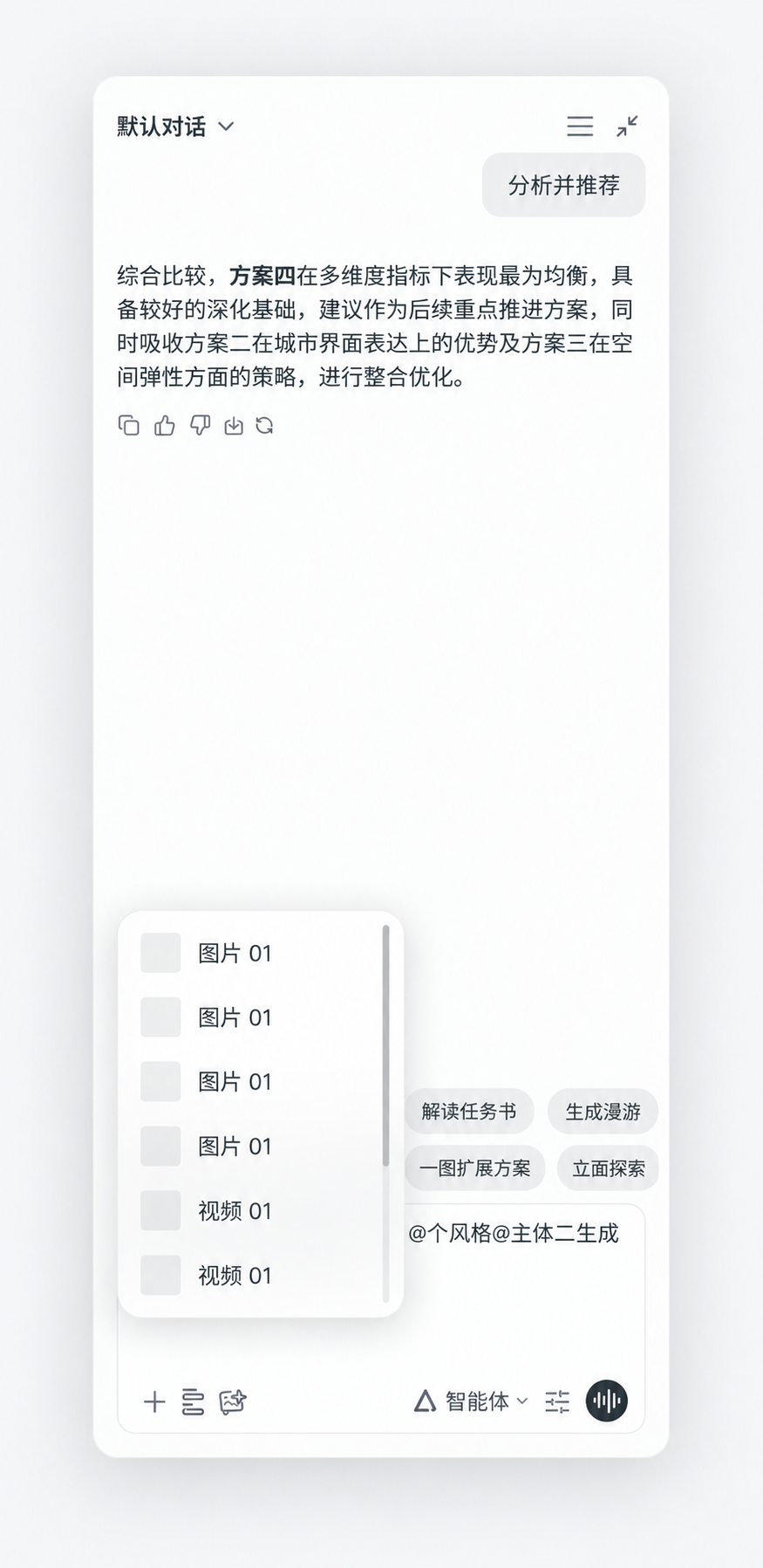 Chinese interface illustration: type @ to select an attachment. The full conversation area shows where to find the input.
Uploaded files and conversation content
Files uploaded to the input become draft attachments. Reference each file and state criteria for comparisons. Use a response's Reference action to quote it, then describe your question or revision.
For style references, specify what may be borrowed and what must not be copied. For a base design, identify fixed massing, entrances and viewpoints.
Remove and clear
For ordinary uploaded attachments referenced with @, delete the text reference before removing the attachment; the remove button may be hidden while referenced. Removing a canvas-selection attachment from the draft also removes its corresponding references.
Clear unreferenced attachments removes only draft attachments not referenced in the text. Referenced and preselected items remain; original assets and files are not deleted.
For an unavailable reference, check that the source exists, has finished processing and is still accessible. Select a valid asset before sending.
Upload files · Describe tasks · Project context · Documentation